I spent twenty minutes yesterday scrolling through a tech forum only to find another thread where some kid was suggesting a “magic” registry tweak to reduce thermal throttling. It’s exhausting. People spend hundreds on RGB fans and fancy liquid loops, thinking they’ve solved the problem, when they haven’t even addressed the basics of how to improve cooling in a PC. If you’re looking for a way to magically lower your temps by editing a hex value in your system settings, you’re going to be disappointed. Most of that online advice is just cargo cultism—people copying things because they saw someone else do it, without any idea if it actually works.
I’m not here to sell you a new case or a premium thermal paste that costs more than my lunch. I’ve spent seventeen years managing fleets of machines, and I’ve learned that thermal management is about physics, not placebo. In this post, I’m going to walk you through what actually moves the needle, from airflow paths to dust management. No hype, no expensive gimmicks, just the stuff I’ve actually tested in the field to keep hardware from cooking itself.
Thermal Paste Application Why Your Technique Is Failing You
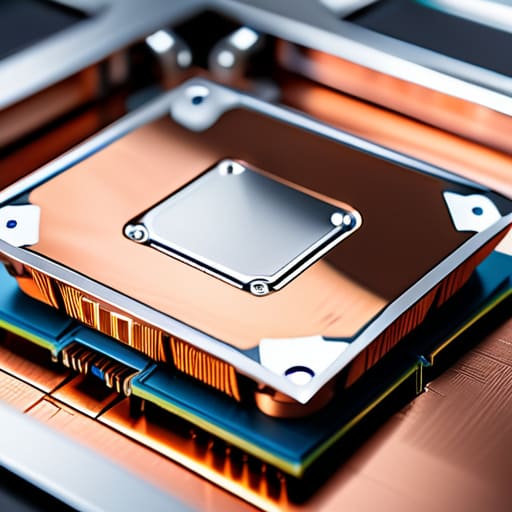
I’ve seen it a thousand times on the helpdesk: a user complains about thermal throttling, and they’ve spent three hours reading forums about “optimal” pea-sized dots versus cross patterns. Look, I’m not saying there’s a secret magic geometry, but most people are failing at basic thermal paste application because they’re either using too much or, more commonly, they aren’t actually getting even pressure across the IHS. If you’re leaving air pockets or creating a thick, uneven slab of grey goop, you aren’t helping. You’re just creating an insulator.
The goal isn’t to be an artist; it’s about eliminating microscopic air gaps between the silicon and the heatsink. I’ve tested various methods on the council’s test benches, and the reality is that consistency matters more than the shape of the blob. If your mounting pressure is uneven, no amount of high-end paste is going to provide meaningful CPU temperature reduction. Stop overthinking the pattern and start focusing on making sure your cooler is actually seated flat and tight. It’s physics, not a ritual.
Liquid Cooling vs Air Cooling the Truth Behind the Hype
I see the same argument every time I browse the hardware forums: “Get an AIO or your system will melt.” It’s nonsense. People treat liquid cooling like a magic bullet, but if your case is a cluttered mess of unmanaged cables, a high-end radiator won’t do a damn thing. In my experience, the debate of liquid cooling vs air cooling usually comes down to your specific chassis and how much you actually care about noise. Air coolers are reliable, they don’t leak, and if a fan dies, you swap it for twenty quid.
The real issue is that most people buy an expensive liquid loop and then ignore their case airflow optimization. You can have the best thermal transfer at the chip, but if you aren’t moving stale air out of the chassis, you’re just recirculating heat. I’ve seen more systems saved by a simple fan curve adjustment and decent cable management than by anyone upgrading to a 360mm radiator. Don’t buy into the hype just because it looks better in a benchmark video; buy what fits your airflow path.
Stop Chasing Software Fixes and Fix Your Hardware Instead
- Check your fan curves in the BIOS, not some third-party “optimizer” app. Most of these bloated utility programs just sit in the background eating CPU cycles and creating more heat than they solve. Go straight to the source and set a proper aggressive curve based on actual sensor data.
- Clean your dust filters every month. I’ve seen rigs that look clean on the outside but have a literal felt mat of dust blocking the intake mesh. If air can’t get in, your expensive fans are just spinning in a vacuum.
- Manage your cable routing properly. It sounds like a cliché from a decade ago, but if you have a bird’s nest of SATA and power cables blocking the path between your intake and your GPU, you’re creating turbulence and dead zones.
- Stop overstuffing your case. If you’ve got a massive high-end GPU and you’ve also decided to cram three HDDs and a shroud in there, you’re killing your airflow. Sometimes less is more when it comes to keeping a steady breeze moving through the chassis.
- Monitor your ambient temperature. If you’re trying to run a high-performance workstation in a room that’s 30 degrees Celsius, no amount of premium fans is going to save you. You can’t cool a PC with hot air.
The Bottom Line on PC Temps
Stop looking for a software fix for a hardware problem; no amount of registry editing or “undervolting” scripts will compensate for a case filled with dust or a dying pump.
Don’t buy into the hype that liquid cooling is a magic bullet; if you can’t manage basic airflow and cable routing, a high-end AIO is just an expensive way to move hot air around.
Stick to the basics that actually work—clean your filters, check your fan curves, and apply your paste properly—instead of chasing every “optimization” guide on a forum.
Bottom Line: Physics Always Wins
Look, if you’ve followed along, you know I don’t care about the flashy RGB lights or the “extreme overclocking” settings that promise miracles. We’ve covered the essentials: you can’t bypass the laws of thermodynamics with a software script. Whether it’s ensuring your thermal paste isn’t a dried-out mess or finally admitting that a massive air cooler is often more reliable than a cheap, leaking AIO, the goal is the same. Stop chasing the phantom performance gains promised by forum gurus and focus on the hardware fundamentals. If your airflow is choked by a wall of dust or a poorly placed intake, no amount of registry editing is going to save your silicon from thermal throttling.
At the end of the day, a well-maintained system is a quiet, stable system. I’ve spent nearly two decades watching people try to “software-fix” hardware problems, and it never ends well. Take the time to do the manual work—clean the filters, check your fan curves, and respect the hardware you’ve invested in. It might not be as exciting as downloading a “turbo boost” utility, but it’s the only way to ensure your machine actually lasts through its lifecycle. Now, if you’ll excuse me, the weather is finally clear enough for a decent paddle on the water.
Frequently Asked Questions
Is it actually worth spending the extra money on a high-end AIO, or am I just paying for the aesthetics?
Look, if you’re running a mid-range chip, a premium AIO is just expensive RGB lighting. Most of those high-end models offer diminishing returns that you won’t actually see in your telemetry. Unless you’re pushing a flagship i9 or Ryzen 9 to its absolute limit, you’re paying for the brand and the aesthetics. Save your money. Buy a decent mid-range cooler and spend the difference on better case airflow or a better PSU.
How often am I actually supposed to clean the dust out of my case before it starts affecting my temps?
Look, there’s no magic number, but if you’re waiting for your fans to sound like a jet engine before you grab a can of compressed air, you’ve already waited too long. I check my fleet every six months. If you’ve got pets or live near a busy road, do it quarterly. Don’t just blow dust around; actually clear the fins. If the dust is caked, your thermal headroom is already gone.
If I've already applied fresh thermal paste, why are my idle temperatures still higher than they used to be?
If you’ve already refreshed the paste and you’re still seeing high idle temps, stop looking at the CPU and start looking at the environment. It’s usually one of two things: your mounting pressure is uneven, or your case airflow has become stagnant. I’ve seen plenty of “pro” builds where the fans are spinning, but the air is just recirculating hot junk. Check your fan curves or, more likely, clean out the dust choking your intake.
