I spent twenty minutes last night scrolling through a tech forum where some kid was claiming he could fix his stuttering frame rates by downloading a “thermal optimizer” utility that looked more like malware than a tool. It’s the same old story: people see a drop in performance and immediately start chasing ghosts or buying expensive liquid cooling kits they don’t actually need. Most of these guides on how to check for thermal throttling are just recycled garbage that tells you to “watch your temperatures,” but watching a number go up doesn’t actually tell you if your hardware is limping. Knowing your CPU is at 90°C is one thing; knowing if it’s actually pulling back the reins on its clock speed is what matters.
I’m not here to sell you on a new fan or a registry tweak that won’t do a damn thing. I’ve spent seventeen years managing fleets where stability was the only metric that mattered, and I’ve learned that you only find the truth through actual stress testing. In this post, I’m going to show you how to use real-world telemetry to see if your silicon is truly choking, rather than just guessing based on a thermometer reading. No fluff, no hype—just the data-driven reality of what your machine is actually doing.
The Truth About Cpu Temperature Monitoring Software
Most of the CPU temperature monitoring software you’ll find on a random tech forum is either bloated junk or completely useless for actual diagnostics. I’ve spent too many afternoons watching people download these “optimizer” suites that claim to fix heat issues while actually just eating up more background cycles. If you want the truth, you need something that shows you raw data, not a colorful dashboard designed to look like a spaceship. You aren’t looking for a pretty UI; you’re looking for the delta between your idle temp and your load temp.
The real problem isn’t just seeing a high number; it’s correlating that number with what the hardware is actually doing. If you see GPU clock speed drops or a sudden dip in your processor’s frequency at the exact same moment the temperature spikes, you’ve found your culprit. That’s not a software glitch—that’s the silicon protecting itself from melting. Don’t let some “gaming booster” app tell you your fans are too slow. Watch the actual clock speeds, not just the temperature readings, because that’s where the real evidence of hardware performance degradation lives.
Spotting Gpu Clock Speed Drops Before They Kill Performance
If your CPU isn’t the culprit, your graphics card is usually the next suspect. I’ve seen plenty of users blame “bad drivers” when the reality is much simpler: they’re seeing GPU clock speed drops in real-time. When the silicon hits its thermal ceiling, the card doesn’t just crash; it pulls back the reins to save itself. If you’re running a heavy render or a game and notice your frame rates stuttering rhythmically, you aren’t necessarily looking at a software bug. You’re looking at the card trying to keep itself from melting.
To catch this, stop looking at just the temperature readout and start watching the frequency graph. If the clock speed looks like a sawtooth pattern—spiking and then immediately cratering—you’ve found your problem. This is a classic sign of hardware performance degradation caused by poor airflow or a failing fan. It’s not enough to know it’s hot; you need to see if the card is actively punishing you for that heat by downclocking. If the frequency drops every time the temp hits a certain threshold, no amount of “optimization” software is going to fix it.
My checklist for spotting the real culprits
- Stop looking at a single temperature number; you need to correlate your clock speeds with your thermal readings during a sustained load to see if the drop actually aligns with the heat spike.
- Forget those “gaming optimizer” apps that claim to monitor everything; use something lightweight like HWInfo64 so you aren’t adding more CPU overhead while you’re trying to diagnose a problem.
- Check your motherboard’s VRM temperatures, not just the CPU die, because if the power delivery components are cooking, the board will throttle the processor regardless of how much liquid nitrogen you’ve poured on it.
- Run a standardized stress test like Prime95 or Cinebench for at least fifteen minutes to differentiate between a momentary spike and actual thermal throttling caused by poor case airflow.
- Ignore the “undervolting” magic tricks you see on YouTube until you’ve confirmed that your current clock speeds are actually tanking; half the time, the issue is just a poorly seated heatsink or dried-out thermal paste.
The Bottom Line
Stop chasing “optimal” temperature numbers from random blogs; focus entirely on whether your clock speeds are actually dropping during a sustained load.
Use a proper stress test to confirm a thermal issue, because a single spike in temperature doesn’t mean your system is throttling.
Don’t waste time on software that just reports numbers; you need tools that show you the relationship between heat, voltage, and frequency in real-time.
Cut Through the Noise
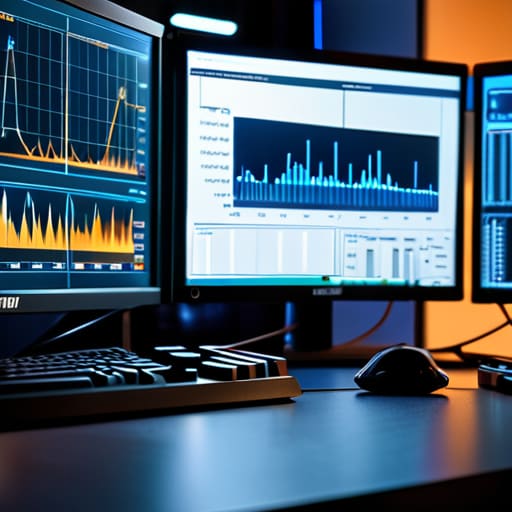
At the end of the day, stop chasing the ghost of “perfect” temperatures and start looking at the actual telemetry. If your monitoring software shows your CPU hitting 95°C and your clock speeds are flatlining, you have a hardware problem, not a software one. I’ve spent enough time in server rooms and at my own desk to know that most “optimization” scripts won’t fix a dried-out thermal paste application or a failing pump. You need to correlate your temperature spikes directly with your frequency drops; if the numbers don’t move in tandem, you aren’t throttling, you’re just running a hot machine. Trust the data, not the forum hype.
Managing a fleet of machines for seventeen years has taught me that stability beats “maximum performance” every single time. There is no point in pushing your silicon to the absolute edge if it means your system becomes a ticking time bomb of instability. Find a baseline that works for your workload, ensure your cooling solution is actually doing its job, and then leave it alone. Once you’ve confirmed your hardware is behaving according to the spec, get off the troubleshooting forums and go do something else—maybe grab a kayak and get out on the water. Real productivity comes from a system that just works.
Frequently Asked Questions
If my temps look fine in HWInfo but I'm still getting stutters, is it actually thermal throttling or is my VRM overheating?
If your CPU temps are sitting in the 60s or 70s but you’re still getting stutters, stop looking at the core temps. You’re likely hitting a VRM limit. Most monitoring tools focus on the silicon, but if your motherboard’s power delivery stages are cooking, they’ll pull back the amperage to save themselves. Check the “VRM” or “MOS” sensors in HWInfo. If those are spiking, no amount of thermal paste on the CPU is going to fix your stuttering.
Do I really need to run a heavy stress test to see this, or can I spot it just by watching my clock speeds during a normal gaming session?
You can definitely spot it during a gaming session, and honestly, that’s more “real world” anyway. If you see your clock speeds dive every time a heavy scene hits, or if your frame rates stutter in a predictable pattern, you’ve found your culprit. Stress tests are fine for a controlled baseline, but I’d rather see how the system behaves when it’s actually under load. If the speeds tank while you’re playing, it’s throttling.
Most of these "undervolting" guides claim they'll fix my heat issues, but are they actually helping performance or just making my system more unstable?
Look, undervolting isn’t a magic wand. Most guides treat it like a “set it and forget it” fix, but they ignore the stability trade-off. If you pull too much voltage, you aren’t just getting a cooler chip; you’re inviting BSODs and silent data corruption. I’ve seen plenty of “optimized” rigs crash during a simple heavy load because the user chased a lower temperature at the expense of a stable voltage floor. Test it properly or don’t do it.
