
I spent most of last Tuesday dealing with a user who was convinced their computer was haunted because of some “optimization” script they found on a forum. They’d spent three hours trying to figure out how to check SSD health using a bloated, third-party “system booster” that promised to reveal hidden drive errors but actually just installed more telemetry junk. It’s the same old story I see every week: people chasing ghost fixes and expensive software suites when the actual data is sitting right there in the hardware, waiting to be read properly.
I’m not here to sell you a subscription or tell you to run some magic registry tweak that won’t do a damn thing. My goal is to show you the actual tools I use when I’m managing a fleet of machines, stripped of the marketing fluff. I’ve tested the standard utilities and the command-line methods, and I’ll tell you exactly which ones give you a real reading and which ones are just wasting your time. We’re going to look at the raw numbers so you can stop guessing and start knowing.
Smart Attributes Explained Decoding the Real Data

When you pull up a report, you’re going to see a wall of numbers and acronyms. Don’t let it intimidate you; most of it is just noise. When we talk about S.M.A.R.T. attributes explained, we’re really just looking at the drive’s internal diary. It’s logging everything from temperature spikes to how many times the controller had to scramble to fix a bit. For me, the only thing that actually matters in a sea of data is the “Reallocated Sectors Count” or its equivalent in NVMe drives. If that number starts climbing, you aren’t looking at a glitch; you’re looking at a countdown to total failure.
You also need to keep an eye on the percentage of life remaining, which is directly tied to SSD wear leveling. Every time you write data, you’re physically wearing down the NAND cells. I’ve seen plenty of “optimization” guides suggest registry tweaks to save your drive, but they’re useless. If you want to know your actual SSD life expectancy, look at the available spare blocks. Once the drive runs out of those “emergency” cells to swap in, you’re essentially driving on a spare tire with no replacement in sight.
How to Check Nvme Drive Health Without the Fluff
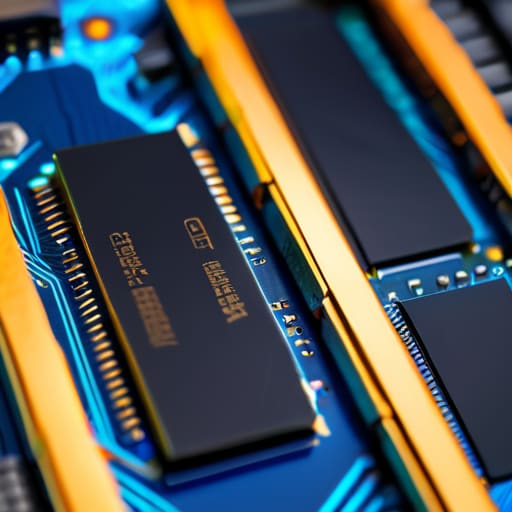
Most of the “optimization” guides you’ll find on Reddit or tech forums will tell you to download some bloated, third-party monitoring suite that eats more resources than the actual drive. Don’t bother. If you’re running modern hardware, you need to look specifically at the NVMe controller data, not just the generic SATA-era metrics. To truly check NVMe drive health, you should start with the SSD manufacturer diagnostic tools—whether that’s Samsung Magician or Western Digital Dashboard. These aren’t just marketing fluff; they are built to communicate directly with the specific firmware on your controller, giving you the most accurate read on SSD wear leveling and actual NAND exhaustion.
If you want to skip the manufacturer’s ecosystem, use a lightweight utility like CrystalDiskInfo, but don’t just look at the “Good” status. Look at the percentage of life remaining. That number is the only metric that actually matters when calculating SSD life expectancy. If that percentage is dropping faster than your usage justifies, you aren’t looking at a software glitch; you’re looking at a hardware countdown.
Five Things to Actually Watch (Before Your Data Vanishes)
- Stop relying on Windows Task Manager to tell you if a drive is failing; it’s great for seeing current throughput, but it won’t tell you if your NAND cells are reaching their end-of-life.
- Look specifically at the ‘Percentage Used’ or ‘Media Wearout Indicator’ in your vendor’s tool; if that number is climbing rapidly, your drive isn’t just “acting up,” it’s actively dying.
- Don’t ignore a sudden spike in ‘Reallocated Sectors Count’; once the controller starts moving data to spare areas, you’re basically living on borrowed time.
- Run a manufacturer-specific diagnostic tool—like Samsung Magician or Western Digital Dashboard—instead of a generic third-party utility, because only the original firmware knows what’s actually happening under the hood.
- Back up your critical files the moment you see any unexpected SMART errors; a “healthy” status today doesn’t mean the controller won’t brick itself tomorrow morning.
The Bottom Line
Stop relying on a single “Pass/Fail” status from a generic utility; if your S.M.A.R.T. reallocated sector count is climbing, your drive is on borrowed time regardless of what the software says.
Don’t bother with those “speed booster” registry tweaks you see on forums; they won’t fix a hardware failure, so focus on monitoring actual drive health metrics instead.
If you’re running an NVMe, use a tool that actually reads the controller data properly, because the standard Windows interface doesn’t give you the full picture of how much life is left in the NAND.
Bottom Line: Don't Wait for the Blue Screen

Look, I’ve spent enough time in server rooms to know that hardware doesn’t usually give you a polite warning before it quits. You’ve looked at the S.M.A.R.T. data, you’ve checked the NVMe specifics, and you’ve hopefully moved past the “my computer feels slow” guesswork. The takeaway is simple: if your percentage of life remaining is dropping faster than it should, or if you’re seeing an uptick in reallocated sectors, it’s time to stop reading forums and start backing up your data. Don’t rely on a single tool or a single metric; trust the trends, not the individual numbers, because a single healthy reading can be a lie told by a dying controller.
At the end of the day, managing a fleet of machines—or even just your own home setup—is about staying ahead of the inevitable. You can’t prevent silicon from wearing out, but you can certainly prevent a hardware failure from becoming a catastrophic data loss event. I keep my backups automated and my health checks scheduled, mostly because I’ve seen too many people lose years of work because they thought they had more time. Get your monitoring in place now, so when the drive finally decides to call it quits, you’re just replacing a part rather than rebuilding a life’s worth of files.
Frequently Asked Questions
If my S.M.A.R.T. data looks okay, can I still trust that the drive isn't about to fail?
Not necessarily. S.M.A.R.T. is a reactive system, not a crystal ball. It catches certain predictable failures, but it won’t warn you about a sudden controller failure or a physical fracture in the NAND. If your drive is stuttering, throwing I/O errors, or disappearing from the BIOS, ignore the “Good” status in your utility. Trust the symptoms, not just the telemetry. If the OS is struggling to read a sector, the drive is failing, period.
Why does my SSD health percentage keep dropping even though I haven't filled it up?
It’s not about how much space you’re using; it’s about how much you’ve written. SSDs have a finite lifespan measured in Terabytes Written (TBW). Every time you save a file or a temp folder updates, you’re wearing down the NAND cells. Think of it like the hull of my kayak—the more miles you put on it, the more wear you get, regardless of how much gear you’re carrying inside.
Is there any point in using those "optimization" tools, or are they just more bloatware?
Look, most of those “one-click optimizer” tools are just glorified bloatware designed to sell you a subscription. They claim to “speed up your PC” by clearing registry keys that haven’t mattered since the Vista days. It’s pure cargo culting. If you want to optimize, do it manually: trim your SSD, manage your startup apps, and clear out the junk yourself. If a tool promises magic, it’s usually just adding more background processes to your tray.
