I was sitting in the server room last Tuesday, listening to the familiar, frantic whirring of a legacy workstation, when I saw a junior tech running a third-party “optimization” suite on a machine packed with SSDs. It’s the same old story: someone reads a forum post from 2004 and starts treating their hardware like it’s a spinning platter from the Windows XP era. People are still losing sleep over how to defragment or not, clinging to these outdated rituals because they’ve been told they’re “maintaining” their systems. Honestly, it’s exhausting to watch people waste cycles—and sometimes their actual hardware lifespan—on optimization myths that haven’t been relevant in a decade.
I’m not here to sell you a bloated utility or repeat the same cargo-cult nonsense you’ll find on a generic tech wiki. I’ve spent seventeen years managing fleets and, more importantly, I keep a spreadsheet of what actually works versus what’s just noise. In this post, I’m going to give you the straight truth based on actual testing and hardware reality. We’ll look at when a defrag is a legitimate necessity and when you’re just performing a digital placebo that does absolutely nothing for your boot times.
File Fragmentation Impact on Performance Fact or Fiction
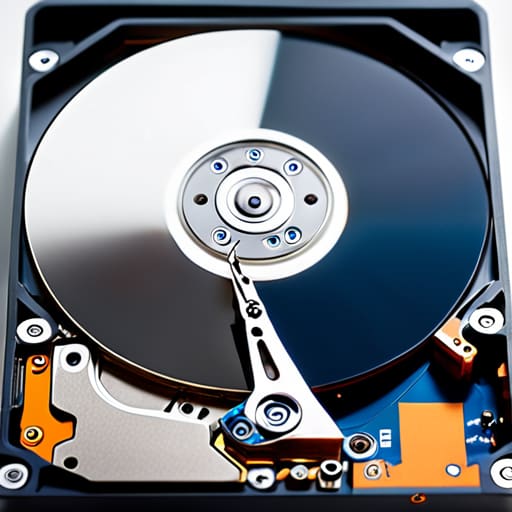
The core issue is that people treat “fragmentation” like a universal bogeyman, but the reality depends entirely on your hardware. Back when I was managing fleets of old spinning disks, a fragmented drive meant the physical read head had to dance all over the platter just to open a single Word document. That mechanical latency was real, and defragging actually mattered. Today, if you’re running an SSD, the concept of a “fragmented” file is largely a legacy concern because there are no moving parts. Seeking to defragment a solid-state drive is a waste of time, and more importantly, you need to understand the impact of defragging on SSD lifespan; unnecessary write cycles just wear out the NAND cells for zero gain.
Instead of manual defragging on modern systems, Windows uses the TRIM command for solid state drives to manage data blocks efficiently. When I run a disk storage health check on my current workstations, I’m not looking for contiguous files; I’m looking to ensure the OS is communicating correctly with the controller. If you’re still following forum advice to “optimize” your SSD by rearranging files, you’re just following cargo cult IT.
Ssd vs Hdd Maintenance Why Your Strategy Must Change
Here is where most people—and most outdated forum threads—get it dead wrong. If you’re still treating your SSD like it’s a spinning platter from 2005, you’re doing more harm than good. The fundamental difference in SSD vs HDD maintenance isn’t just about speed; it’s about how the hardware actually handles data. On an old mechanical drive, the physical read head has to move to find scattered pieces of a file. On an SSD, there are no moving parts, so the file fragmentation impact on performance is practically negligible for the average user.
In fact, if you try to run a traditional defrag on an SSD, you’re just performing unnecessary write cycles. Every time you force a defrag, you’re contributing to the impact of defragging on SSD lifespan for absolutely zero gain. Instead of defragging, you need to ensure the TRIM command for solid state drives is actually working. Windows is supposed to handle this via its built-in optimization tools, but I’ve seen too many “optimization” scripts that just end up wearing out flash cells prematurely. Check your drive type before you start clicking buttons.
My Rules for Not Breaking Your Drive
- Stop running manual defrags on SSDs; Windows knows how to use the TRIM command, and forcing a traditional defrag just burns through your write cycles for zero gain.
- If you’re still running a mechanical HDD, let Windows Task Scheduler handle it in the background—don’t waste your afternoon manually clicking ‘Optimize’ unless you’ve noticed actual file access lag.
- Check your drive type first; I’ve seen too many people following old forum advice to defrag their solid-state drives, which is a fast track to shortening the hardware’s lifespan.
- Ignore the “registry cleaning” tools that claim to speed up your disk; they don’t reorganize your physical data blocks, they just clutter your system with more junk.
- Use the built-in ‘Optimize Drives’ tool instead of third-party “speed up” software; it’s the only one that actually understands the difference between a spinning platter and flash memory.
The Bottom Line
If you’re running an SSD, stop looking for defrag tools; Windows handles TRIM automatically, and manual defragging is just unnecessary wear on the drive.
Defragmenting an HDD still has some merit for mechanical drives, but don’t expect it to fix a slow system if your bottleneck is actually RAM or a dying disk.
Ignore the forum gurus telling you to run custom optimization scripts; stick to the built-in Windows Optimize Drives tool and let the OS do its job.
The Bottom Line on Defragging
At the end of the day, the “magic” of defragmentation depends entirely on what kind of silicon you’re actually running. If you’re still managing a legacy fleet with spinning platters, sure, a scheduled defrag helps keep the heads from dancing too much. But if you’re on an SSD—which, let’s face it, should be the standard by now—trying to defrag is not just useless, it’s actually actively harmful to the drive’s lifespan. Stop chasing those old forum posts that tell you to run a defrag every Sunday; modern Windows handles the heavy lifting through TRIM, and trying to manually optimize an SSD is a waste of your time and your hardware’s endurance.
I know it feels good to click “Optimize” and see a progress bar, but real systems administration is about knowing when to step back and let the OS do its job. My advice? Stop looking for the “secret” registry tweak or the manual maintenance script that’s going to turn your workstation into a supercomputer. Focus on your actual workload and let the automated background processes handle the housekeeping. Work smarter, not harder, and for heaven’s sake, stop treating your SSD like it’s a mechanical hard drive from 2005.
Frequently Asked Questions
If Windows is supposed to handle this automatically now, why am I still seeing manual defrag options in the system tools?
It’s a fair question. Honestly, it’s mostly legacy bloat. Microsoft keeps those tools in there because they can’t just strip away decades of UI, and because “automatic” isn’t always perfect. Sometimes a scheduled task hangs, or a drive’s state gets wonky, and you need manual control. I’ve seen plenty of systems where the built-in optimization service just gives up. It’s there as a failsafe, but for most of us, it’s just clutter.
Is there any actual risk of wearing out my SSD if I run a defrag command by mistake?
Look, if you accidentally trigger a defrag on an SSD, you aren’t going to brick the drive overnight. Modern Windows is smart enough to recognize the drive type and will usually just run a TRIM command instead of a traditional defrag anyway. But, if you’re running some ancient third-party tool that forces a massive reshuffle of data blocks, you are unnecessarily eating up write cycles. It’s not a death sentence, but it’s still pointless work.
Does running a defrag on an older mechanical drive actually speed up boot times, or is that just another placebo effect?
If you’re running an old mechanical drive, it isn’t a placebo, but it isn’t a miracle either. When your boot files are scattered across different sectors, the actuator arm has to work harder, which adds latency. Defragging reorders those files so the drive can read them in one continuous sweep. It won’t turn a ten-year-old laptop into a gaming rig, but it will shave a few seconds off that agonizingly slow boot sequence.
