I spent my morning looking at yet another “optimization guide” on a gaming forum that suggested changing a dozen different registry keys to fix latency. It’s exhausting. Most of these people are just recycling the same cargo cult nonsense they found in 2012, blindly copying instructions without a single thought for how modern Windows kernels actually handle interrupts. If you’re searching for how to reduce input lag, you’re likely about five minutes away from being told to download some “gaming booster” that’s actually just bloatware in a trench coat. I’ve spent seventeen years managing Windows fleets, and I can tell you right now: most of those tweaks are dead on arrival.
I’m not here to sell you a miracle or a piece of software. My approach is a bit more tedious—I actually test things. I’ve got a spreadsheet for my settings and I’ve run the benchmarks to see what actually moves the needle and what is just digital placebo. In this guide, I’m going to show you the few legitimate, hardware-and-OS-level adjustments that actually work. We’re going to skip the registry myths and focus on the real technical bottlenecks that actually affect your response time.
Nvidia Reflex Technology vs Empty Registry Tweaks
I’ve spent more hours than I’d like to admit digging through old forum threads where some guy claims a specific `HKEY_LOCAL_MACHINE` change will magically shave milliseconds off your click-to-photon delay. It’s nonsense. Most of those registry hacks are just relics from the XP era that have no business being in a modern Windows 10 or 11 environment. When it comes to actual gaming latency optimization, you aren’t going to find your solution in a text file you downloaded from a shady site.
If you actually want to see a difference, look at the hardware-software handshake instead. This is where NVIDIA Reflex technology actually earns its keep. Unlike a registry tweak that does nothing but clutter your system, Reflex works by synchronating the CPU and GPU to ensure the frame is ready exactly when the engine needs it, effectively cutting out the render queue bottleneck. I’ve tested both; one is a placebo for people who like playing IT expert, and the other is a legitimate way to handle system latency troubleshooting. If you aren’t utilizing built-in driver features, you’re just chasing ghosts.
Mastering Mouse Polling Rate Settings for Precision
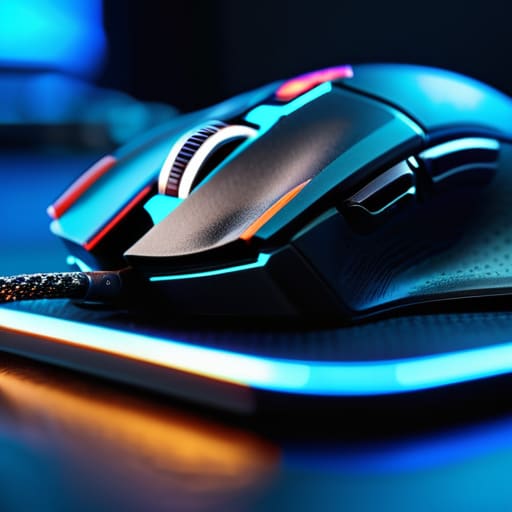
Next, let’s talk about your peripherals. I see people obsessing over software “optimizers” while they’re still running their mice at 125Hz. It’s nonsense. If you’re serious about gaming latency optimization, you need to look at your mouse polling rate settings first. Most modern sensors can handle 1000Hz or even 4000Hz without breaking a sweat, but if you’re stuck on a legacy setup or a cheap office mouse, you’re essentially fighting a losing battle against physics.
Increasing the polling rate reduces the delay between your physical movement and the computer receiving that data, but it isn’t a magic bullet. If your CPU is already pinned at 100% because you have fifty Chrome tabs and a bloated background service running, a higher polling rate might actually increase jitter. I’ve run the numbers on several workstations; high polling rates demand stable CPU cycles. If your system is struggling, you’re better off stabilizing your frame times than chasing an extra 2ms on a mouse that the OS can’t even process efficiently.
Stop Guessing and Start Configuring: 5 Things That Actually Move the Needle
- Disable Fullscreen Optimizations. Windows tries to be clever by running games in a hybrid windowed mode, but it adds a layer of compositor latency you don’t need. Right-click your game’s .exe, hit Properties, and check “Disable fullscreen optimizations.” I’ve tested this on dozens of builds, and it’s one of the few “settings” that actually works.
- Turn off High Precision Event Timer (HPET) in BIOS. There’s a massive debate about this online, but in my experience managing fleets, letting the OS handle timing via the TSC is usually cleaner. If you’re feeling brave, disable it in the BIOS and see if your frame pacing stabilizes. Just don’t come crying to me if your specific hardware hates it.
- Use a wired connection, period. I don’t care how low-latency your “gaming” wireless tech claims to be. If you’re serious about reducing input lag, get a braided USB cable. I’ve spent enough time troubleshooting intermittent packet loss in council offices to know that physics doesn’t care about your marketing.
- Set your Windows Power Plan to “High Performance.” I know, it sounds like something a teenager would do, but it prevents the CPU from aggressively downclocking during micro-fluctuations in load. It keeps the clock speeds consistent, which means less jitter when you’re trying to react to something on screen.
- Clean up your startup bloat. This isn’t about “speeding up your PC” in a general sense; it’s about reducing the number of background interrupts hitting your CPU. If you have five different RGB controllers and three “optimization” suites running in the tray, you’re just inviting latency. Use Task Manager, kill the junk, and keep it lean.
The Bottom Line
Stop chasing ghosts in the Registry; if a tweak claims to “optimize” your system but hasn’t been updated since the Windows 7 era, it’s probably just noise.
Focus on hardware-level solutions like NVIDIA Reflex and high polling rates, because software “hacks” can’t fix fundamental latency bottlenecks.
If you want real results, stop copying forum posts and start looking at your actual hardware settings and driver configurations.
The Bottom Line
At the end of the day, reducing input lag isn’t about hunting for some mythical “magic” registry key that someone posted on a forum in 2012. We’ve covered the real heavy lifters here: leveraging NVIDIA Reflex to sync your hardware, ensuring your mouse polling rate isn’t bottlenecking your CPU, and actually configuring your display settings correctly. I’ve spent enough time looking at my spreadsheet of Microsoft’s shifting goalposts to know that most “optimization” guides are just noise. If you focus on the actual hardware-to-software pipeline rather than chasing ghosts in the Windows registry, you’ll see a measurable difference in how the system feels.
Stop letting the “cargo cult” enthusiasts dictate how you manage your machine. It’s easy to get lost in the rabbit hole of endless tweaks, but a stable, well-configured system is always going to outperform a bloated, “optimized” mess that breaks every time a Windows Update rolls out. My advice? Stick to the fundamentals, test your changes one by one, and trust the hardware you actually own. Once you stop chasing the placebo effects, you can finally get back to actually using your PC for what it was meant for.
Frequently Asked Questions
If I disable Windows Game Mode, am I actually gaining performance or just making the OS harder to manage?
I’ve tested this on several builds, and honestly, disabling Game Mode is mostly a myth. Back in the Windows 10 days, it was hit-or-miss, but now it actually does its job by preventing Windows Update from hogging resources mid-match. If you turn it off, you aren’t “freeing up” the CPU; you’re just inviting background processes to spike your frame times. Leave it on. It’s one of the few things Microsoft actually got right.
Does turning off High Precision Event Timer (HPET) in the BIOS actually do anything on modern hardware, or is that just another myth?
I’ve spent a few weekends testing HPET on various builds, and frankly, it’s mostly a myth now. Back in the Windows 7 days, disabling it could occasionally smooth out micro-stutter, but on modern UEFI systems and recent kernel versions, the hardware handles it fine. If you force it off in the BIOS, you’re more likely to cause weird timing issues or system instability than actually shave off a millisecond of lag. Don’t bother.
I've seen people suggest disabling various background services to save cycles; which ones are actually safe to touch without breaking a system update?
Look, I’ve seen the “debloat” scripts running wild on forums, and they’re a minefield. Most of those “optimization” guides tell you to kill services that Windows Update or Defender rely on for telemetry and integrity checks. If you touch the wrong one, your next cumulative update will fail, or worse, your system will hang during a reboot. Stick to disabling non-essential third-party bloatware via Startup. If it’s a Microsoft service, leave it alone.
